BlaceFX
Download & Release History

 (click icons to download)
Version 1.1.67
Release Date: 2026-10-9
Initial release.
Version 1.3.68
Release Date: 2026-10-14
Improved encoding and decoding strategy. This will make this step render much faster.
Add task selection. Use ‘Composite’ for full control over the inputs and ‘Inpainting / Removal’ if you want to simply replace parts of the image without structural guidance.
Make Reference Frame and prompts optional.
Added quickstart project.
Version 1.4.68
Release Date: 2026-10-15
Fix final frames being added with wrong offset to composition.
Introduction
BlaceFX brings generative video directly into your After Effects composition.
Note: We are currently in public beta. This gives you an opportunity to experiment with the plugin while allowing us to further improve the stability of our server and billing infrastructure. The easiest way to share feedback directly with us is through our Discord server.
BlaceFX connects After Effects directly to cloud-hosted generative video models, eliminating manual exports, uploads, and downloads. The plugin automatically streams your frames to the cloud and returns the generated result directly to your composition as an uncompressed PNG sequence, without intermediate H.264 compression.
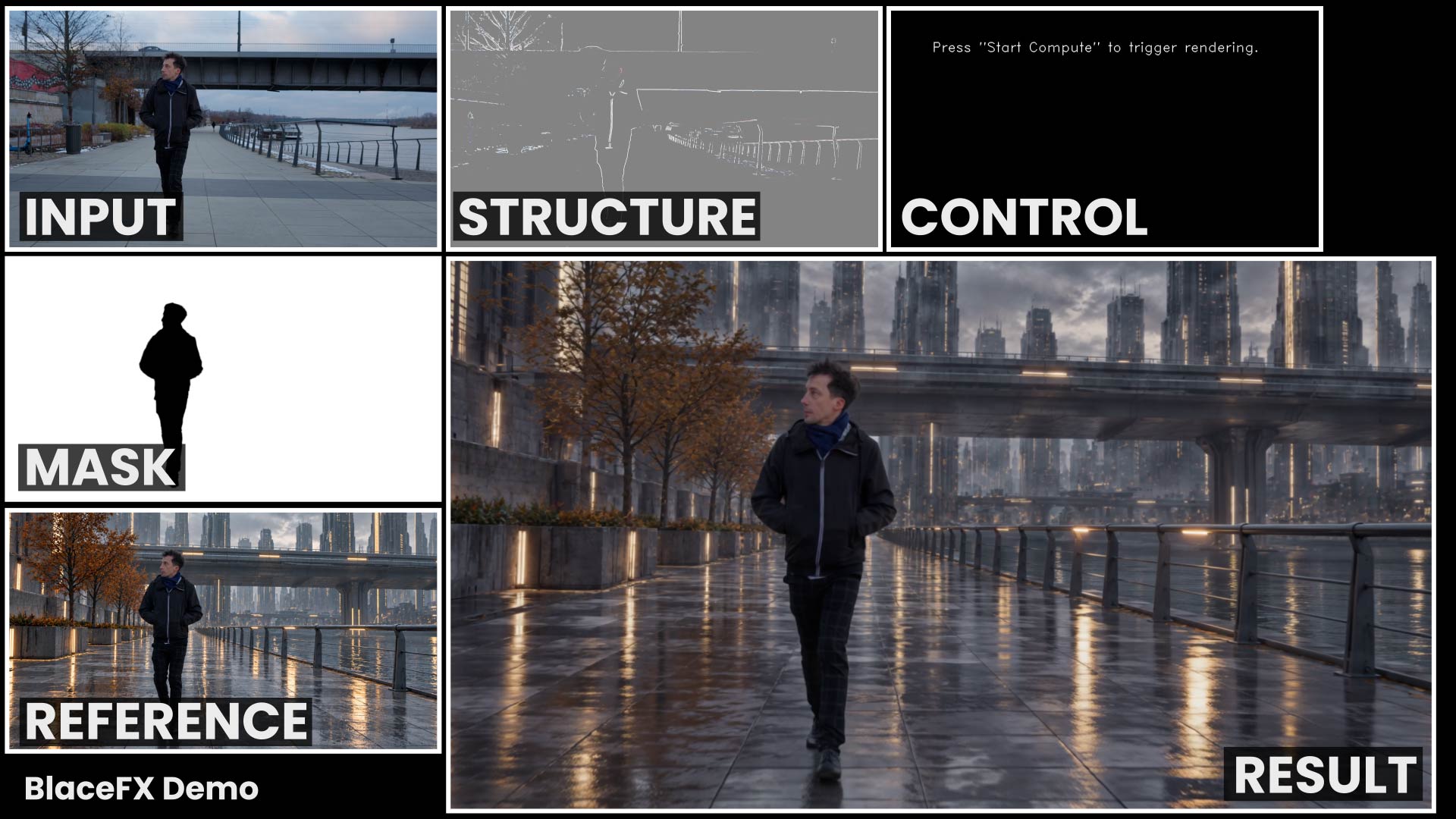
BlaceFX can use multiple inputs from your composition to guide the generation:
Source clip — the footage you want to transform
Reference image — guides appearance and visual identity
Mask — controls where the model should make changes
Structure clip — provides motion and structural guidance
Prompts — additional positive / negative prompts to guide the generation
These inputs can be combined to handle a wide range of compositing, transformation, and generative video workflows without leaving After Effects.
A 5-second 720p generation takes approximately 3 minutes. Jobs run mostly in the background, so After Effects remains available and you can continue working while BlaceFX generates your result.
Quickstart
Create an account, generate your API key, and top up your credits. No minimum amount is required. $1 gives you five 5-second clips.
Download the sample project.
Open the project file.
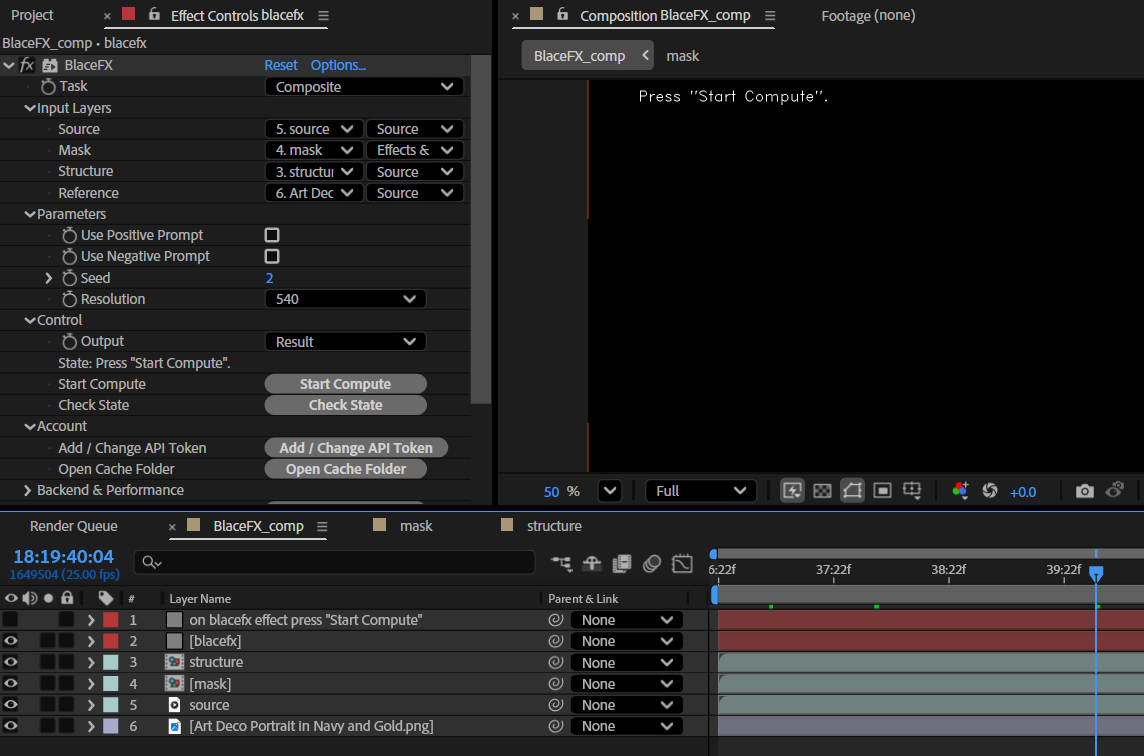
Click Add/Change API token to set the API token you created earlier.
On the BlaceFX layer, click Start Compute and wait until you see Encoding… (this takes a few seconds).
Occasionally click Check State until rendering is complete.
The resulting image sequence is automatically added to your composition.
You can also watch the tutorial for the quickstart here:
Runtime and Costs
BlaceFX uses a credit-based billing system. You only pay for the generations you submit, without having to rent GPUs or manage cloud infrastructure.
Public Beta Pricing
During the public beta, each generation costs 20 credits, regardless of video length or resolution.
We plan to introduce a more flexible pricing model based on generated video duration and resolution.
Generation Time
A 5-second video at 720p typically takes around 3 minutes to generate.
Actual processing times may vary depending on server availability, queue length, and workload.
Generation runs mostly in the background, allowing you to continue working in After Effects.
System Requirements
BlaceFX requires one of the following:
Windows: An NVIDIA GPU with at least 12 GB of VRAM.
macOS: An Apple Silicon Mac with at least 16 GB of RAM.
Video generation runs in the cloud. Your local hardware is used for preparing and encoding the input footage.
Prerequisites
Create an account on our website.
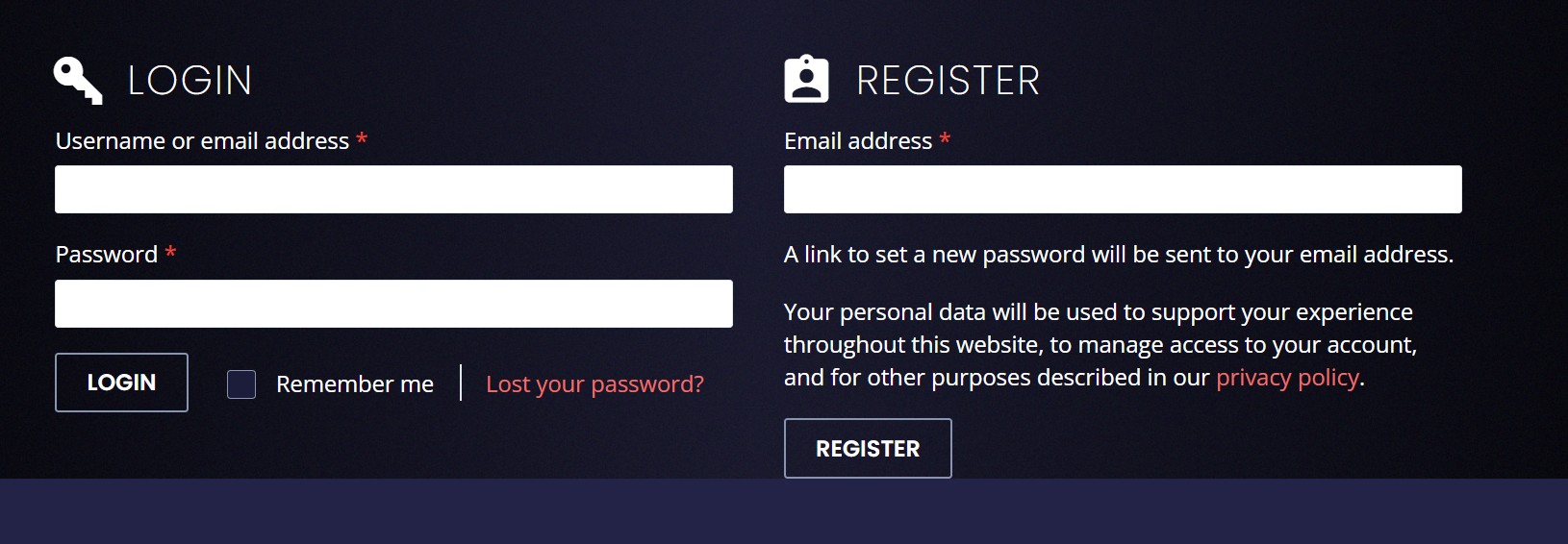
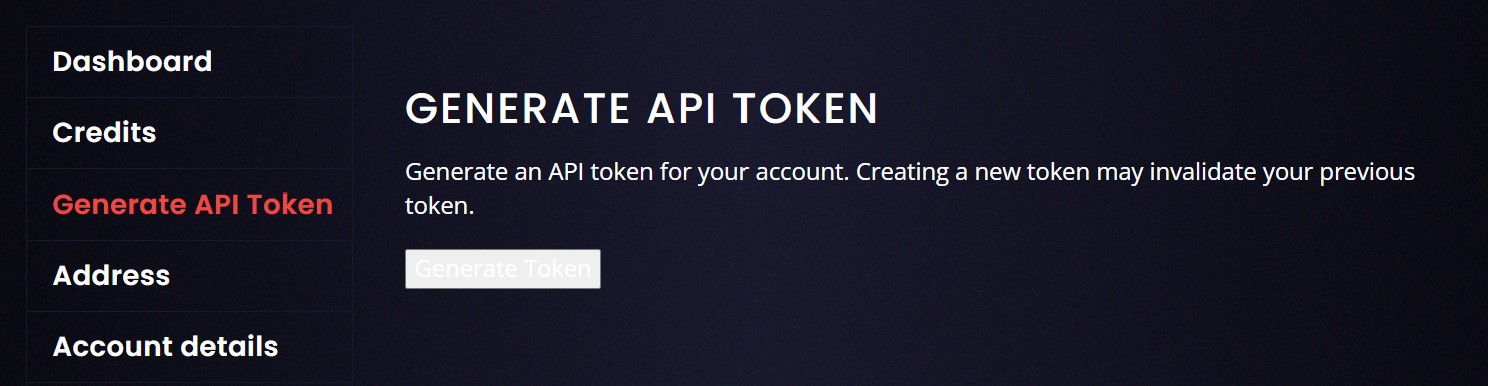
Generate an API key. Store it safely and don’t share it with third parties, as you will be billed for usage associated with this key. It can be revoked or refreshed at any time.
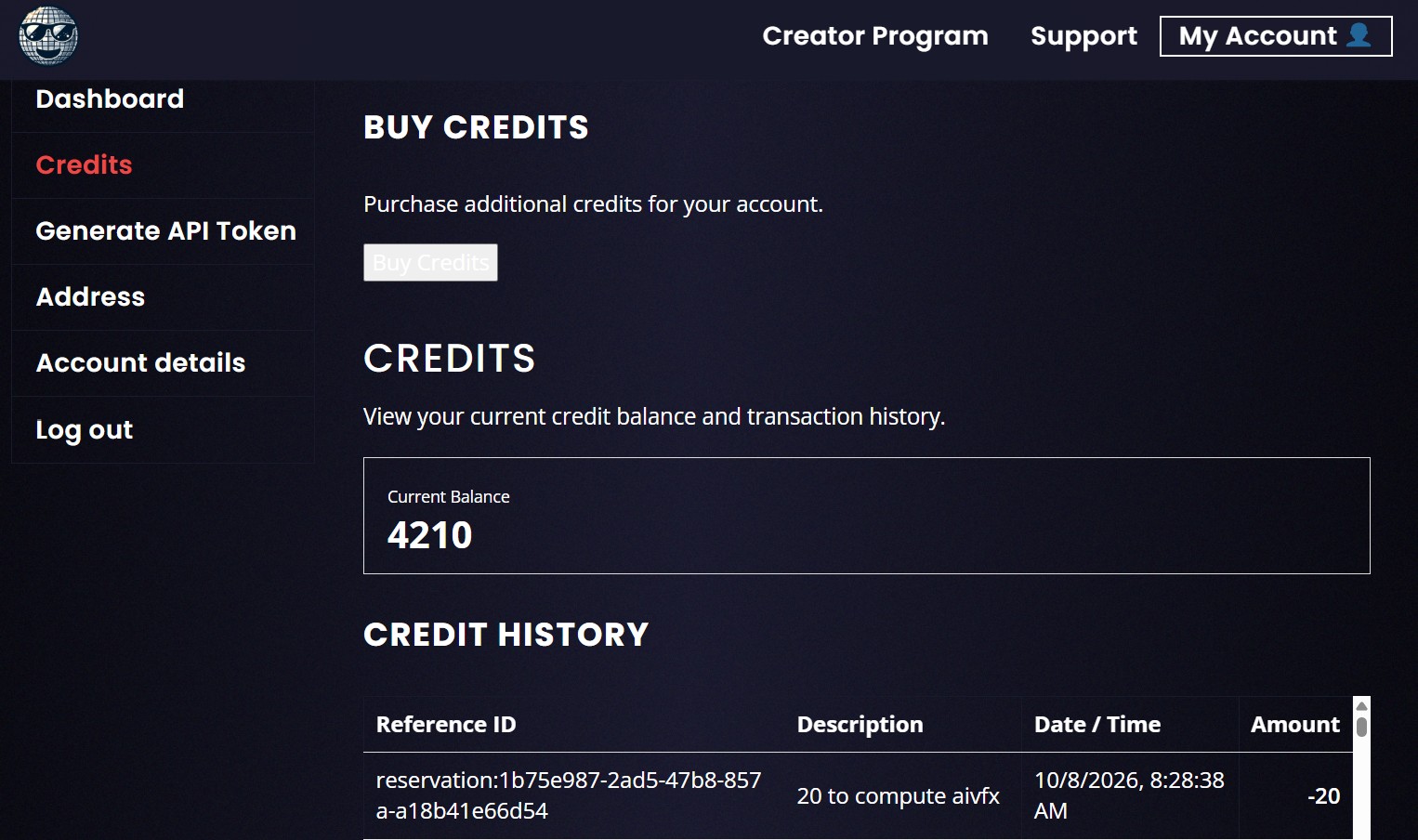
Buy credits. We use FastSpring as our payment provider, and you will receive a confirmation email from them as well. Afterwards, you should find an entry in your ledger.
Workflow
Please watch the introduction video for a quick overview:

The main ingredients of a generation are:
Source
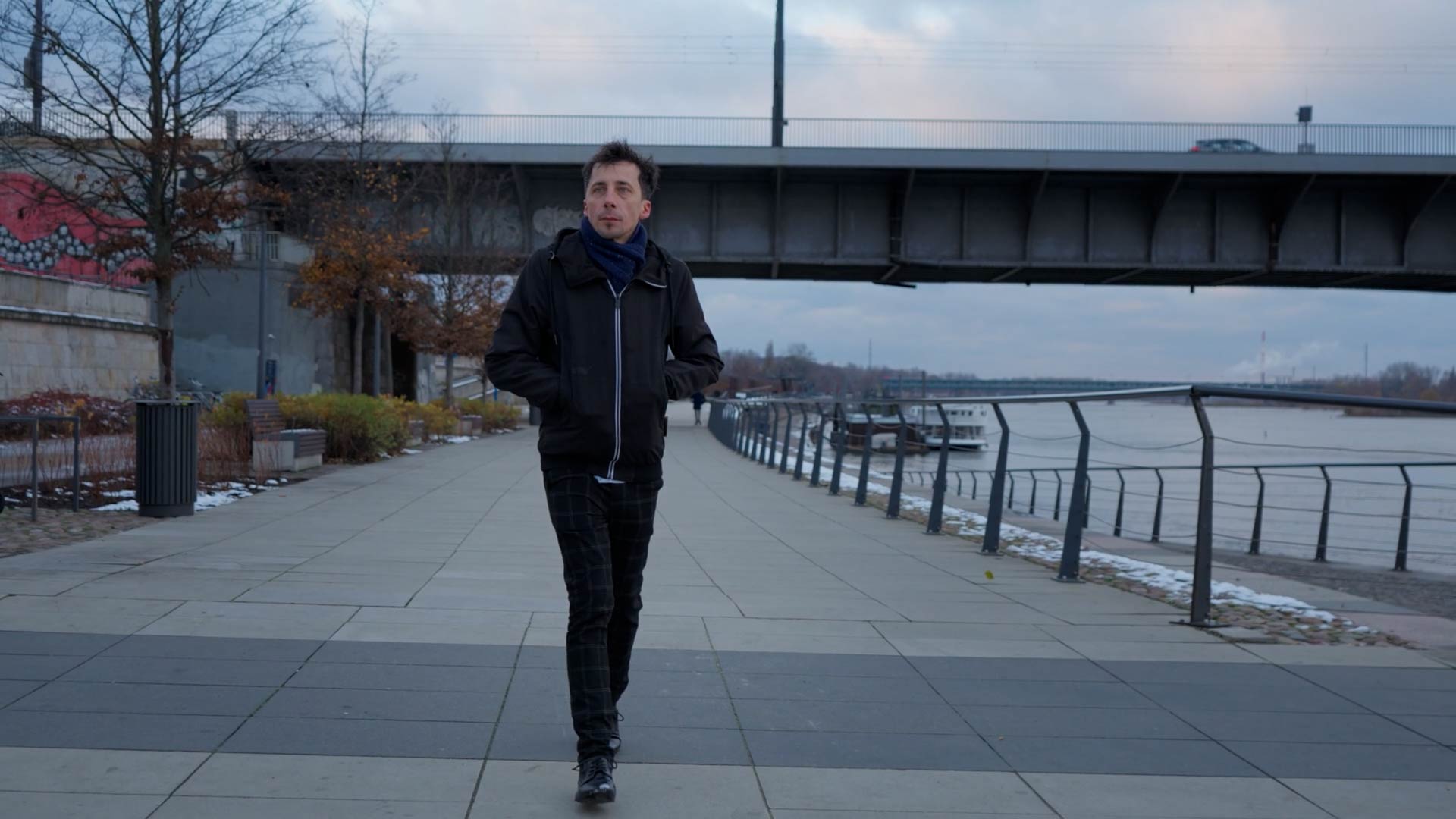
The source clip you want to modify.
Mask
This tells the video model which parts to change. Black pixels are kept; white ones can be generated.

Reference
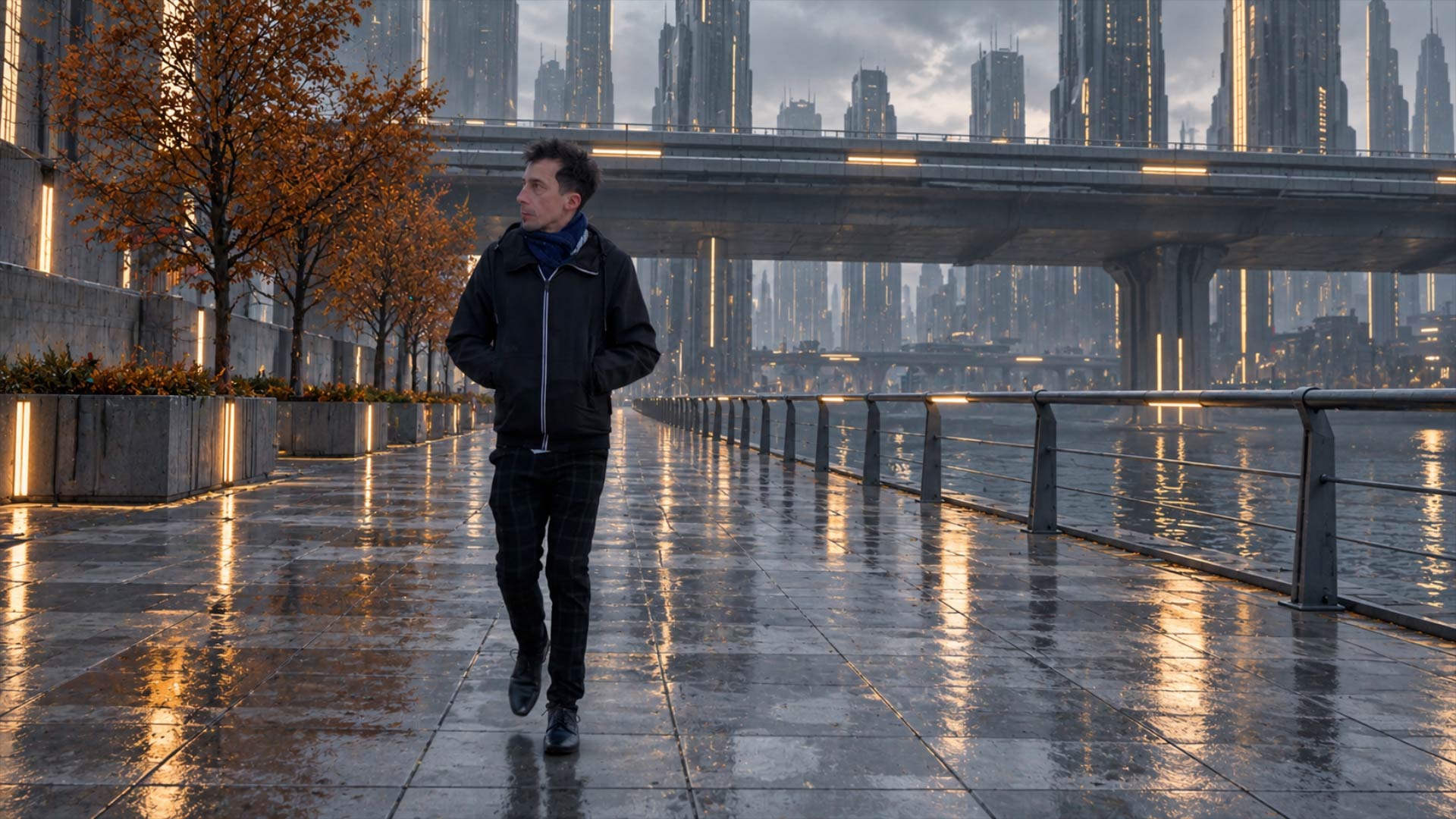
A visual reference to guide the generation. We’ve had good experiences creating these with third-party image models like ChatGPT or Nano Banana. Traditional workflows are fine as well.
Structure
The structure layer provides additional visual guidance to help the model preserve motion, spatial relationships, and the overall composition of the source footage.
For best results, use simple visual representations, such as edges, depth maps, or tracked points.
We recommend keeping most of the frame uniform grey and highlighting only the structural information that should guide the generation.
Avoid unnecessary visual details, as these may interfere with the generated result.
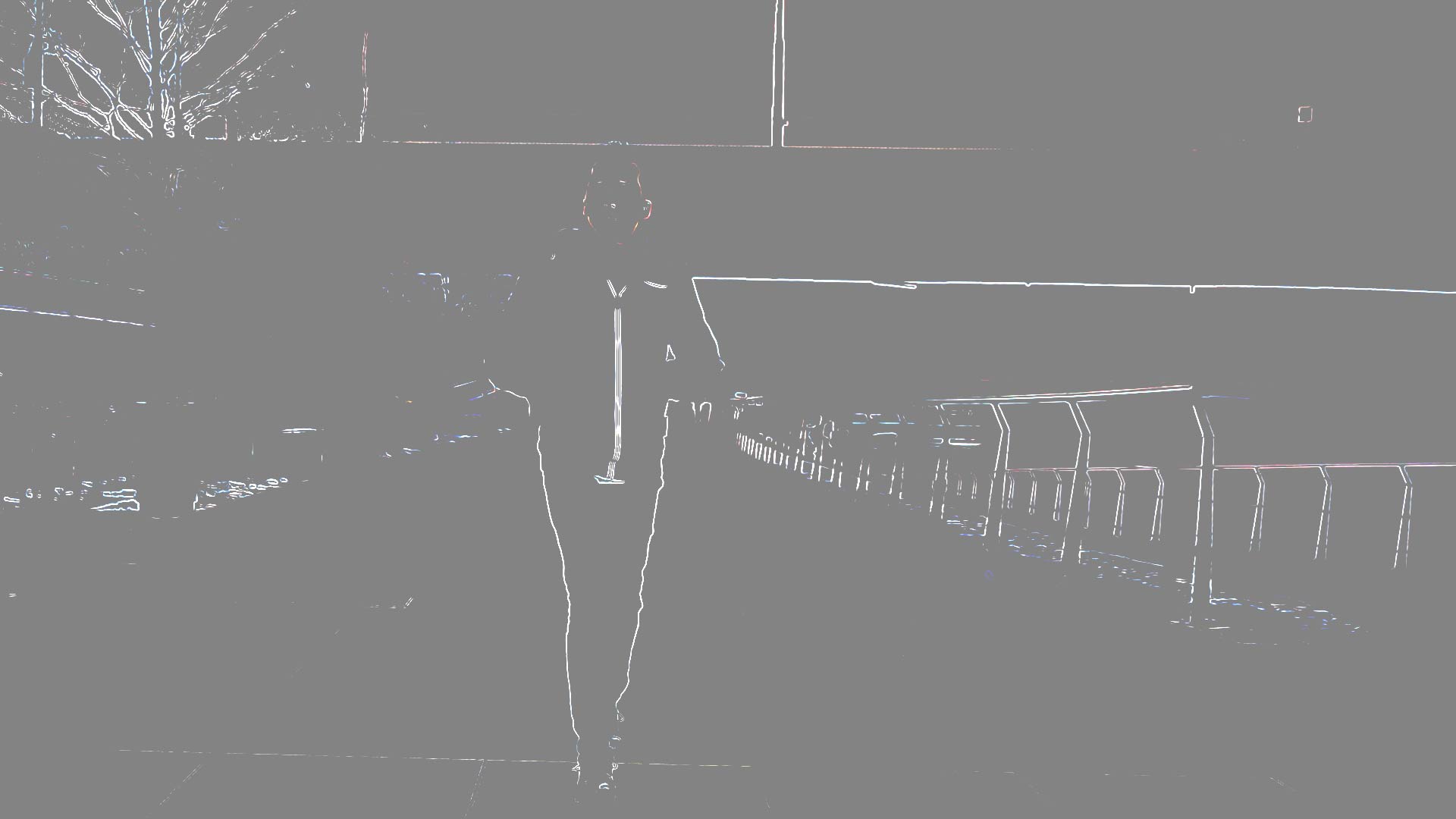
Edges on grey |
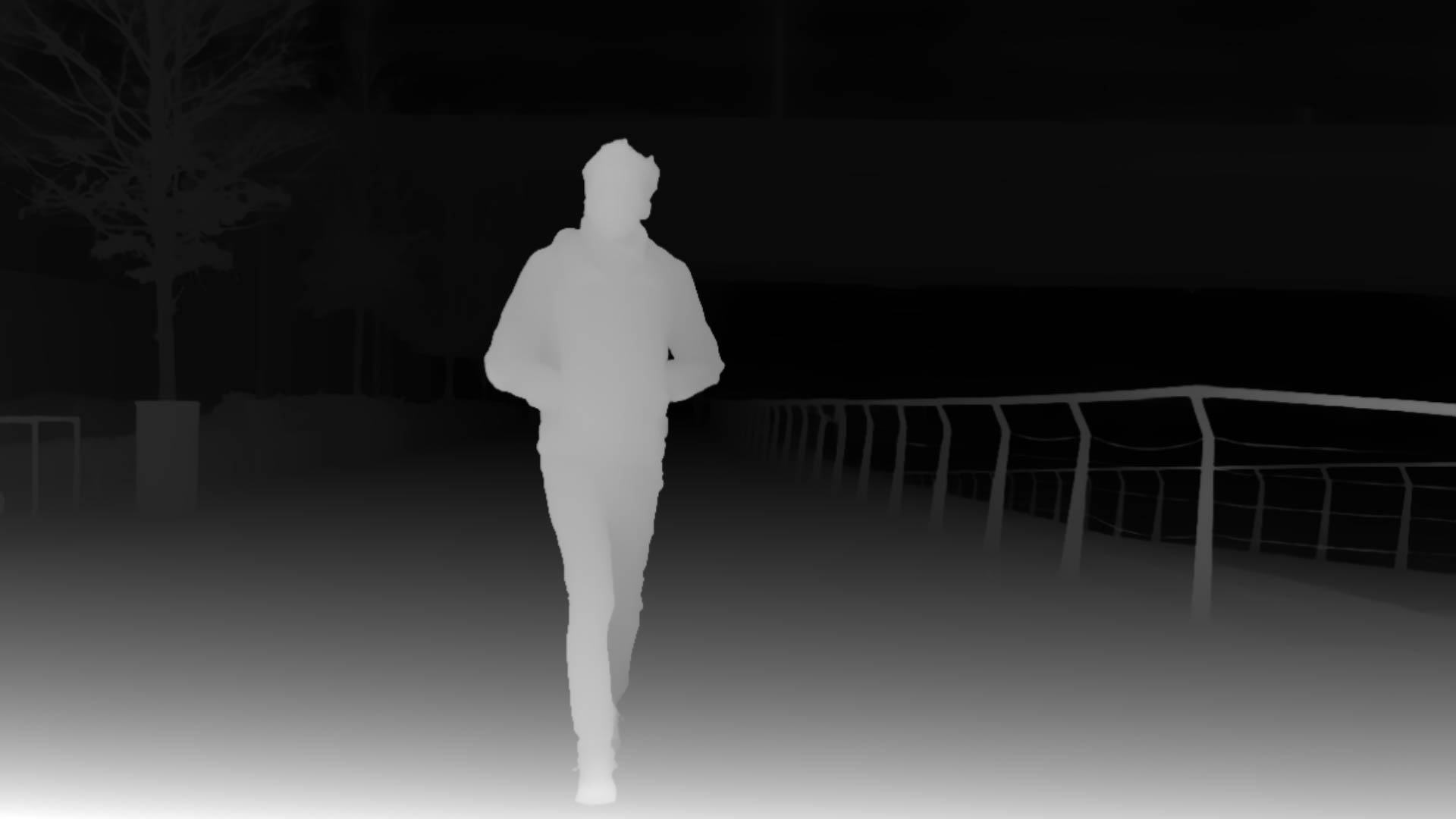
Depth Map |

Tracked points, can be of any shape |
Prompts
The Positive and Negative Prompt fields are used to further guide the generation. The positive prompt should always describe the scene in a few words and should not differ from what is shown in the reference image.
Parameters & Controls
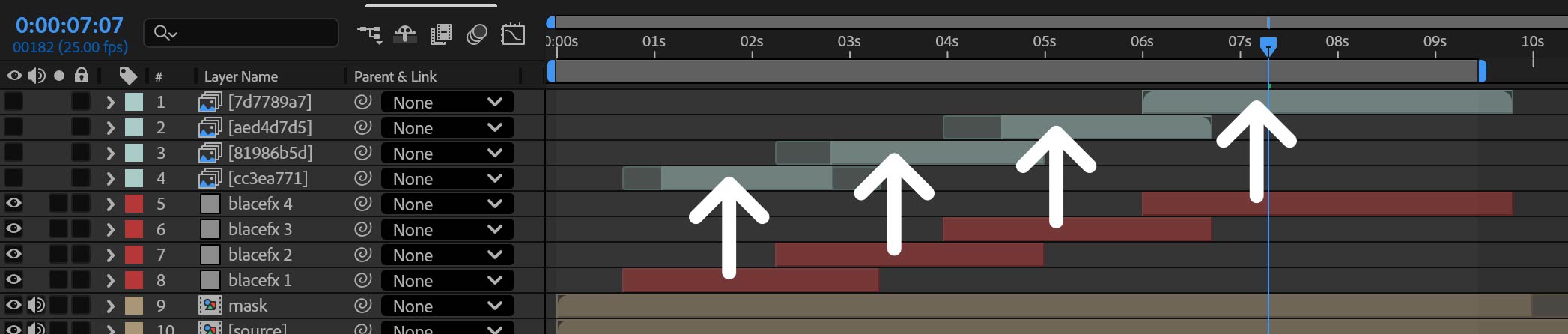
Use the layer duration of the BlaceFX layer to control which parts of the composition are rendered. The resulting image sequence is always added to the top of the composition and has the same in-/out-points and duration as the BlaceFX effect layer which triggered the rendering.
Task
Select the task that best suits your workflow.
- Composite
Provides full control over the generation using source footage, a reference image, masks, prompts, and a structure layer.
This mode is ideal for transforming footage while preserving the original motion and composition.
- Inpainting / Removal
Edit, replace, or remove specific regions of a clip using a mask.
White areas define where the model can generate new content, while black areas are preserved.
The reference image and prompts are optional. If neither is provided, the model uses the surrounding image content as guidance to fill the masked regions.
Input Layers
Link the layers described above. There is an additional “Save Current Source Layer” button. When clicked, the current source layer frame will be saved as an image to <home>/Blace Plugins/BlaceFX/Saved Source Images.
Parameters
Prompt & Negative Prompt (optional)
The prompts described above. Those are purely optional and can be used to further refine the generation. E.g. if unwanted objects appear, add them in the negative prompt.
Seed
Create variations by changing the seed value.
Resolution
Control the size of the output clip. This refers to the shorter dimension of the clip.
This section is used to trigger the actual generation.
Encoding/Decoding (NVIDIA only)
We recommend to run all computation on the server. Only if you have a very slow internet connection, change this to “GPU”. The upload/download buffer will be smaller at the cost of longer local computation.
Control
This section is used to trigger the actual generation.
Output
Use this to quickly check the input layers of the effect. It has to be set to “Result” to start the generation.
Check State
Click this to update the UI with the current processing state. The state will be displayed both in the UI and in the layer frame. The states are:
Not Computed: Nothing has been computed so far, or the inputs have changed.
Encoding: The video footage is encoded locally to be sent to the servers. This runs on your GPU and takes ~30s for 5s of 720p video.
Queued: The job is queued and waiting to be picked up by a server. Ideally, you will never remain in this state for long (a few seconds at most). However, since we are just starting with this infrastructure, expect wait times of several minutes.
In Progress: The job is being processed on a server.
Decoding: The finished video has been received and is being unpacked.
Ready for Import: Decoding has finished. Press “Check State” once again, and the resulting clip will be added as a new layer to your composition.
Computed: Computation finished successfully.
Failed: An error occurred during execution. Please reach out to us with the log files.
Insufficient Credits: You don’t have enough credits left.
Invalid API Token Set: The token you entered is not valid.
Account
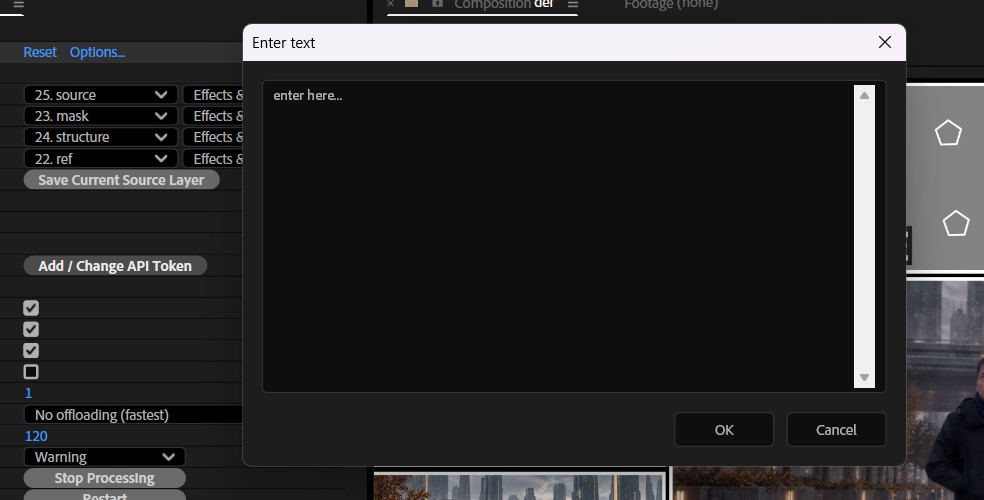
Add / Change API Token
Use the dialog to add your token. This will be stored machine-wide in a file at <home>/.blace/api_token.
Backend & Performance
Hardware Acceleration
Run calculations on the GPU. This will give massive speedups compared to CPU mode, especially on CUDA. On Windows with non-NVIDIA GPUs the speedup is still significant, but not all models are supported. Please check the product sites for notes about which models are supported.
Lower Precision
Compute with reduced precision if possible. This can save up to half of the memory and give you some speedups at the cost of sometimes slightly reduced quality.
Allow CPU Fallback
Run computation on the CPU if model cannot be executed on the GPU.
CUDA Memory Sharing (on CUDA machines only)
Try to keep frames data on the GPU for rendering. This is faster, especially on larger resolutions like 4k. Might not work on some NVIDIA driver versions (e.g. 476.x) so keep your drivers updated.
Model Offloading
Enabling this will make sure only the AI model parts which are needed for computation are kept on the GPU. This might lower VRAM usage under some settings at the cost of moving AI models in and out of GPU memory. Options are:
No offloading: Keep all models on the GPUs VRAM.
CPU: Move unneeded models to the RAM and back if needed. This will occupy RAM.
Full Unload: Completely unload models if not needed. This saves both VRAM and RAM but might be much slower, as the models have to be loaded again for every request.
Timeout
The maximum time a frame can be processed before the computation times out.
Samples (not available for all settings)
The number of ai samples to calculate. This will improve the models accuracy.
Parallel (only available if Samples > 2)
This will render all samples at the same time (faster), if disabled computation might be slower but require less VRAM.
Computation Tiles (not available for all settings)
Split the computation into several tiles. This can help if you run out of memory.
Deactivate Prerendering (Premiere only)
Will not render the effect during preview playback, only on stopped frames. Enable this for increased interactivity.
Stop Processing
Cancels a long-running frame computation immediately.
Restart
If a frame was canceled with “Stop Processing”, trigger a rerender.