CorridorKey by blace.ai
- Tips:
Use AE’s internal Advanced Spill Suppresor to remove bleeding colors!
You will get the best performance on a NVIDIA / Windows machine with Mercury GPU Acceleration (CUDA) enabled.
Disable Composition -> Preview -> Cache Frames When Idle for best responsiveness of the plugin.
Parameters
Model
The plugin will expand its list of supported models as they become available. The original CorridorKey model is currently unavailable, but will be added back soon. The BlaceKey v1.x series supports both green- and bluescreens.
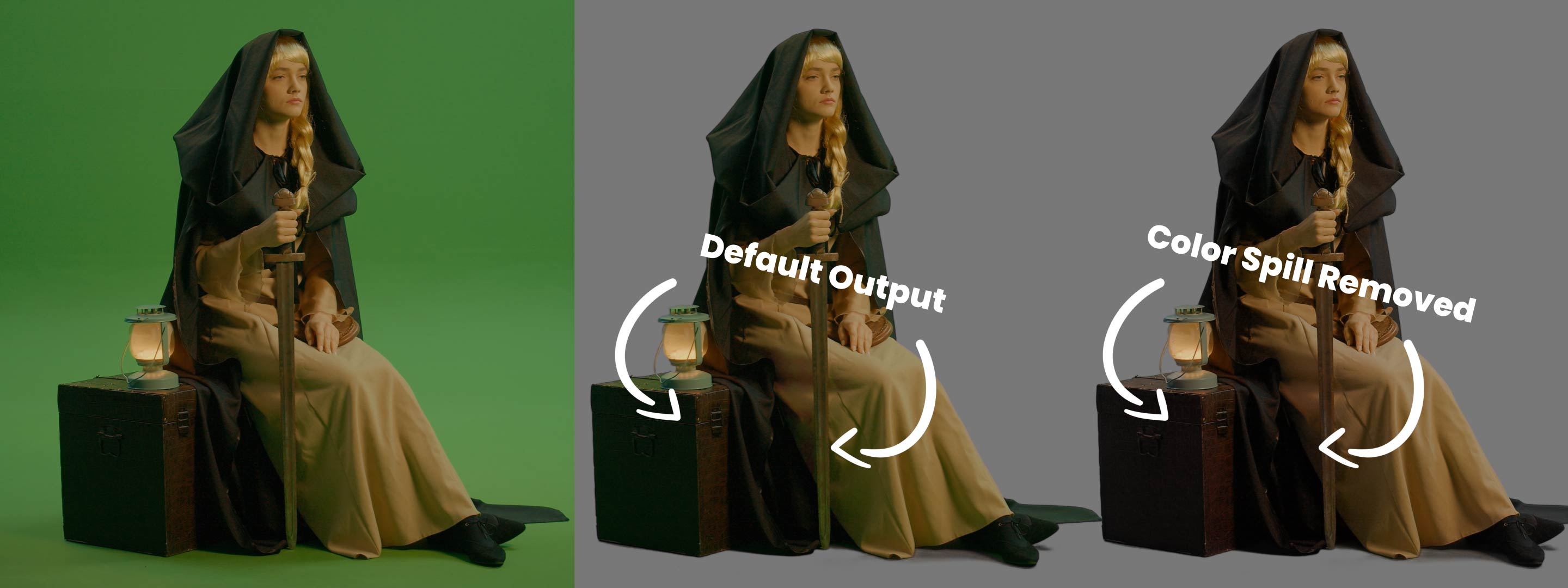
AI-based Despill
Invokes a light-weight despill module to remove colors bleeding from the background onto the subject.
Hint Matte
Use either an AI-based hint matte or provide the model with a custom b/w layer, coming from another keyer.
Auto Matting Model
Choose one of the provided AI models for hint matte generation. For scenes with human subjects use BiRefNet or SGHM, DISNet for everything else.
Auto Matting Quality
The tradeoff between speed and quality in the automatting step (using BiRefNet). The “Fast” results will be sufficient in most cases.
B/W Layer
The layer used to provide the CorridorKey model with the alpha hint.
Keying Quality
This sets the internal processing resolution of the frame. “Fast” corresponds to 512px, “Accurate” to 1024px and “Extreme” to 2048px. Original processes the frame at the original footage resolution.
Output Mode
“Result” gives you the RGB output with alpha set and “Matte” the black/white matte. “Hint” is the internal matte passed to the CorridorKey model.
Backend & Performance
Hardware Acceleration
Run calculations on the GPU. This will give massive speedups compared to CPU mode, especially on CUDA. On Windows with non-NVIDIA GPUs the speedup is still significant, but not all models are supported. Please check the product sites for notes about which models are supported.
Lower Precision
Compute with reduced precision if possible. This can save up to half of the memory and give you some speedups at the cost of sometimes slightly reduced quality.
Allow CPU Fallback
Run computation on the CPU if model cannot be executed on the GPU.
CUDA Memory Sharing (on CUDA machines only)
Try to keep frames data on the GPU for rendering. This is faster, especially on larger resolutions like 4k. Might not work on some NVIDIA driver versions (e.g. 476.x) so keep your drivers updated.
Model Offloading
Enabling this will make sure only the AI model parts which are needed for computation are kept on the GPU. This might lower VRAM usage under some settings at the cost of moving AI models in and out of GPU memory. Options are:
No offloading: Keep all models on the GPUs VRAM.
CPU: Move unneeded models to the RAM and back if needed. This will occupy RAM.
Full Unload: Completely unload models if not needed. This saves both VRAM and RAM but might be much slower, as the models have to be loaded again for every request.
Timeout
The maximum time a frame can be processed before the computation times out.
Samples (not available for all settings)
The number of ai samples to calculate. This will improve the models accuracy.
Parallel (only available if Samples > 2)
This will render all samples at the same time (faster), if disabled computation might be slower but require less VRAM.
Computation Tiles (not available for all settings)
Split the computation into several tiles. This can help if you run out of memory.
Deactivate Prerendering (Premiere only)
Will not render the effect during preview playback, only on stopped frames. Enable this for increased interactivity.
Stop Processing
Cancels a long-running frame computation immediately.
Restart
If a frame was canceled with “Stop Processing”, trigger a rerender.